Students Faq - general technical problems
How to Download Your Own Data or Course Files in bulk
Moodle content is split into two different types of access:
- Own Files (Personal data export) → your submissions, grades, forum posts, and account-related data. This is your personal data, which you have the right to access under the GDPR
- Course Files (Teaching materials) → slides, readings, documents, and resources provided in courses.
1. Own Files (Your Personal Moodle Data)
Your personal data stored in Moodle, such as:
- Assignment submissions
- Forum posts
- Grades (where available)
- Other personal activity data
Alumni may also request this data even after losing login access.
How to request your data export
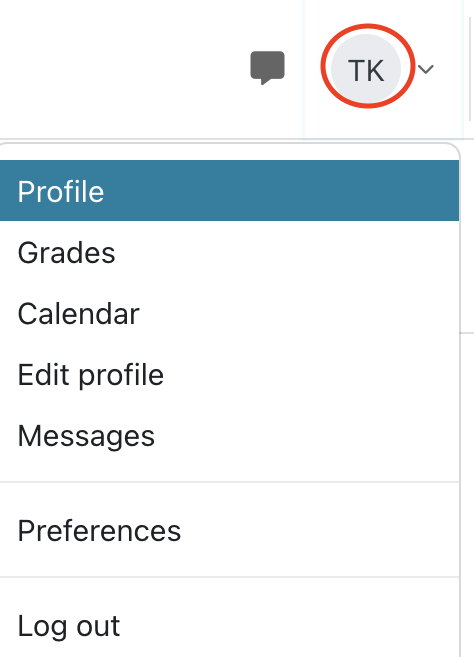
Step 1: Open Data Requests
- Log in to Moodle (if you are alumni, and can't login anymore, write an email from your alumni email address)
- Click your profile (top-right corner)
- Open "Profile"
- Open "export all my personal data" and save changes.
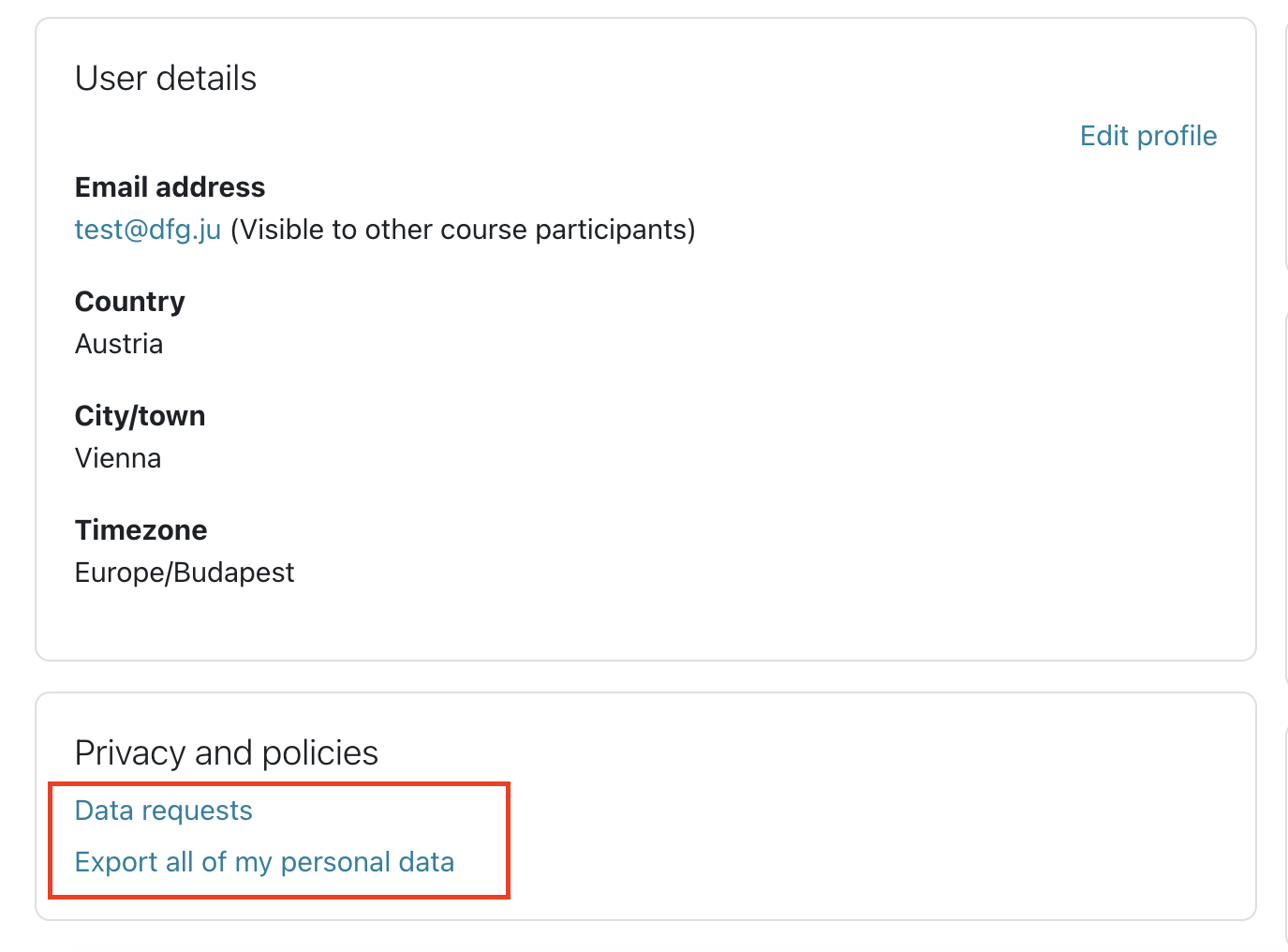
Step 2: Download your export
Wait until the status becomes Download ready - it may take a few minutes or even an hour if you have a lot of data. You can check this at the same place at your profile - "data requests".
You should also get an email notification when your data is ready.
When ready, you will see two options:
- Download cleaned export
This is a selected export of your available data. It includes your submissions, uploaded files, forum posts, gradebook entries, feedback, and other relevant personal information that may be useful.
- Download full export
- Complete technical dataset created by the Moodle Privacy module
- Includes logs, technical information and system metadata
- Useful for advanced or archival purposes, really hard to use to find specific data, like assignments

Step 3: Open the files
- Download the ZIP file
- Extract/unzip it
- Open the folder
- Open index.html in your browser
This page lets you browse all exported data - alternatively you can find the files in the folder structure
2. Course Files (Teaching Materials)
These are not included in personal data exports and are controlled by departments or instructors.
Due to copyright and fair-use regulations, students officially have access to course materials only while the course is running, unless the department or instructor chooses to keep access open. In any case, access cannot be extended beyond graduation.1. For desktop computers (windows/mac)
There is no direct bulk download function available by default, but instructors/departments can enable this in the courses if they wish.
If this is not the case, can still download the files from a course relatively quickly with the following method:
If it is enabled in your browser, you can just push the ALT button and (left)click on the files one by one, then these will be sent to your default download folder directly.
Note: This may not work from all browsers from a Mac, but should work with Safari.
If it asks for the download location, you need to change your settings.
For example in Chrome: Deselect the "ask where to save each file before downloading" option:
chrome://settings/?search=download
2. From a mobile, or Tablet
You can use the “Moodle mobile” app, which enables you to make the readings offline quickly (with the little cloud icon  next to them in your courses).
The files will be made offline, and you will be able to find them without the app at the apps folder (for Android data > com.moodle.moodlemobile > sites
Android: https://play.google.com/store/apps/details?id=com.moodle.moodlemobile&hl=en
Apple: https://itunes.apple.com/app/moodle-mobile/id633359593?mt=8